Graph Panel
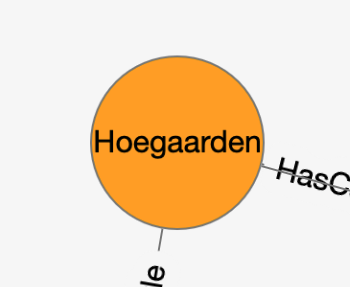 |
Hold the selection on a node to show its context menu. Then while still holding the selection, slide on the action to execute and then release the selection. | 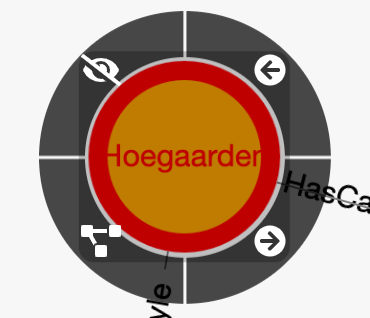 |
|---|
The context menu has the following actions:
-
←Load incoming vertices -
→Load outgoing vertices -
Load both incoming and outgoing vertices
-
Hide the current node. This action will remove the node from the graph
Node Panel
When a node is selected, its property are displayed in the right panel.
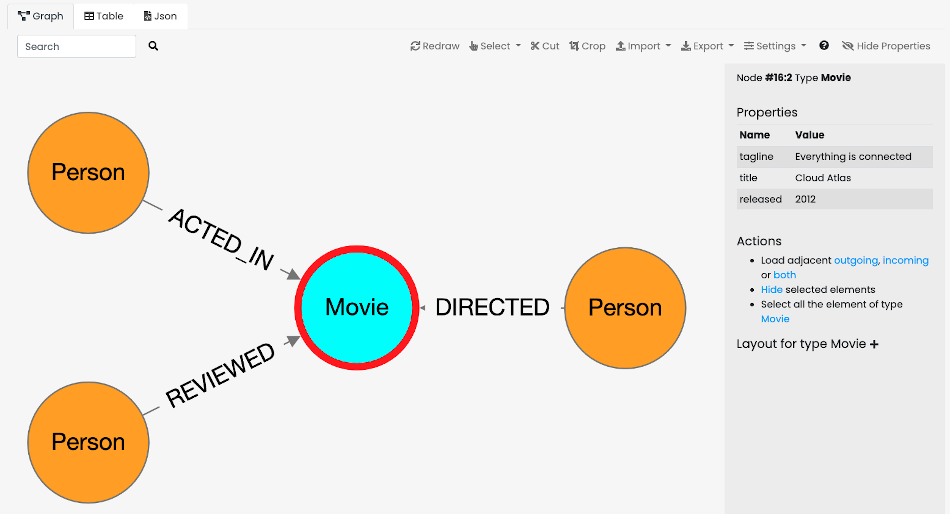
The right panel can always be hidden by clicking on Hide Properties button.
In the right panel you can find all the information relative to the selected node, such as:
-
Element type:
NodeorEdge -
Type
-
Properties table
-
Actions, containing quick actions to execute against the selected node
-
Layout
Node Layout
Click on the + button to expand and make visible the layout panel relative to the node type selected.
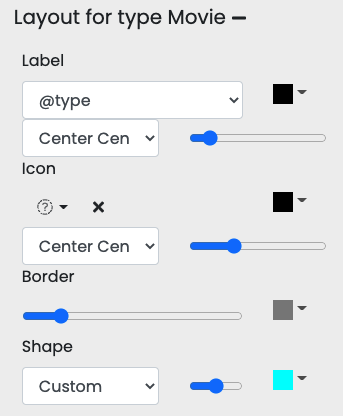
Change the label to an attribute that represents the node.
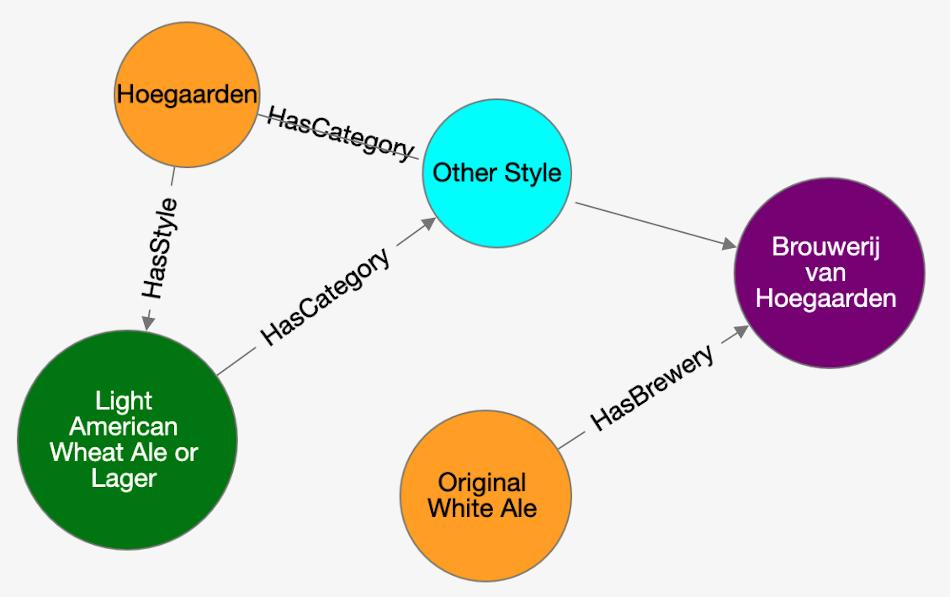
In this example, selecting the title for the type Movie and the name for Person, makes the same graph much more readable and useful in terms of information.
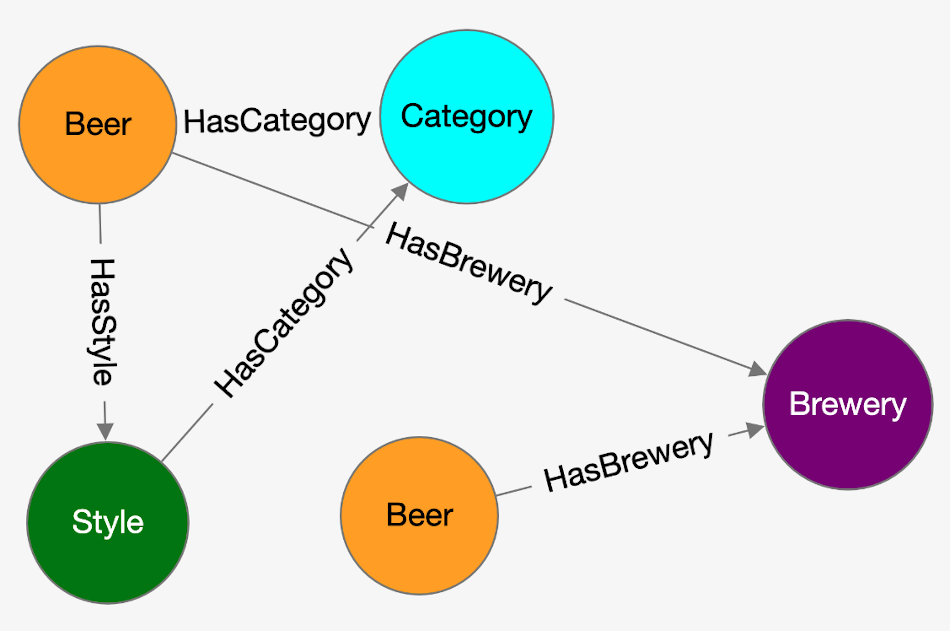
This is the default rendering of a small graph from the OpenBeer dataset. The nodes have the type as label.
After selecting the attribute name on each node types, this is the result.
You can save your setting in a file and share the settings with your colleagues.
To do this, click on Export button and select Settings, then download the file. You can re-apply the same style by selecting Import and then Settings. Upload the file saved before and your style settings will be restored. You can share the setting filw with your colleagues and friends to work on the same dataset by using the same style.
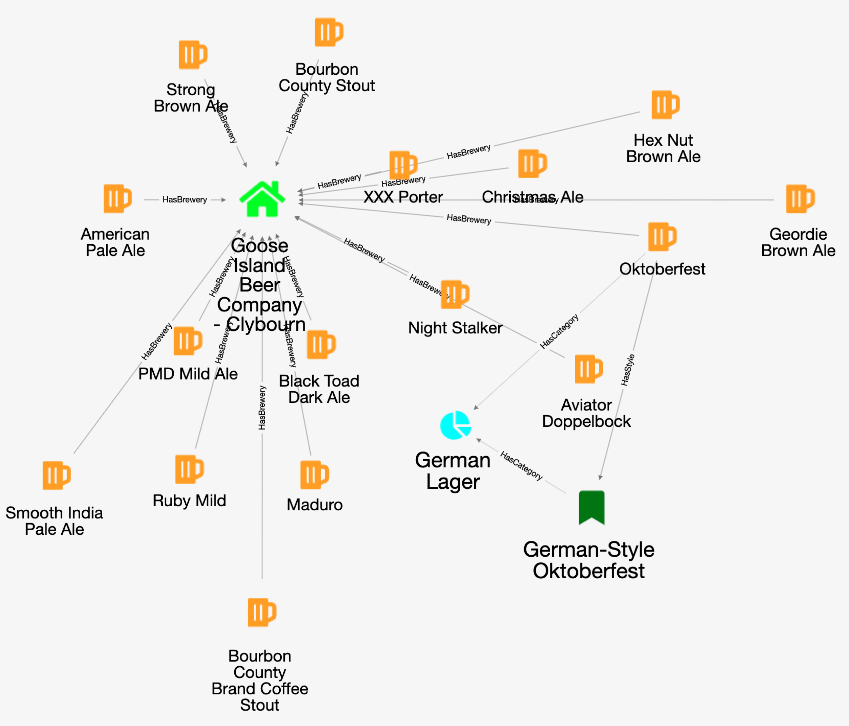
Below you can find an example of customization for the OpenBeer database with custom icons, colors and labels:
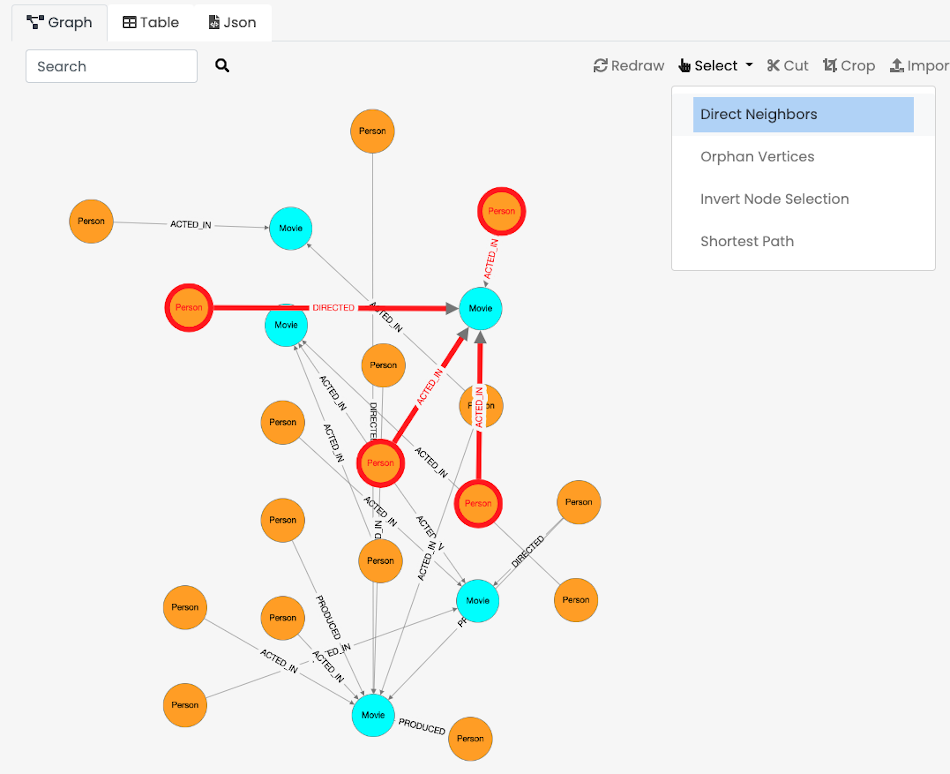
Direct Neighbors
Selects the nodes directly connected to the selected ones.
Usage
Select one or more nodes from the graph and click on Select → Direct Neighbors.
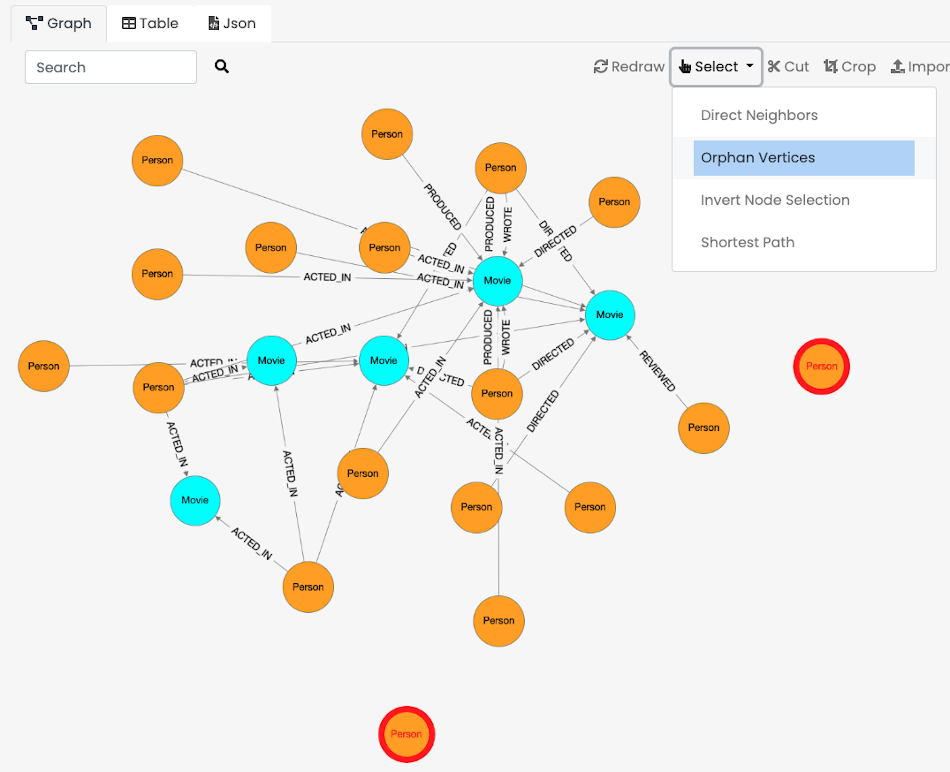
Orphan Vertices
Selects the nodes that are not connected with any other node.
Usage
Click on Select → Orphan Vertices.
Invert Node Selection
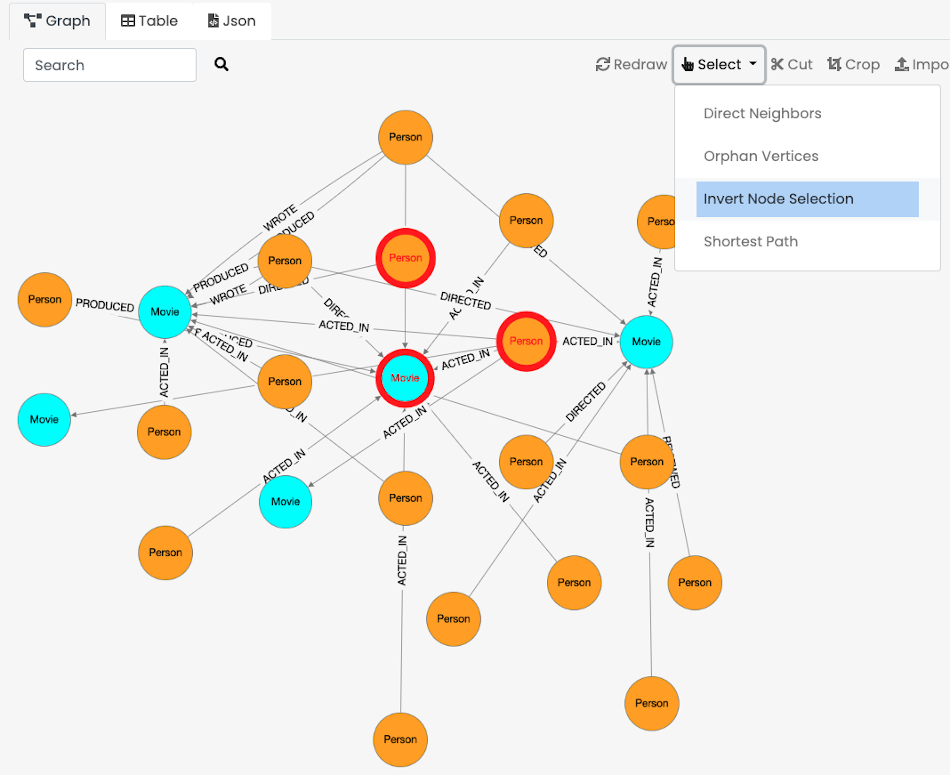
Inverts the current selection. All the elements that are currently selected will be not selected and all the element that were not selected become selected.
Usage
Select some nodes from the graph and click on Select → Invert Node Selection.
Shortest Path
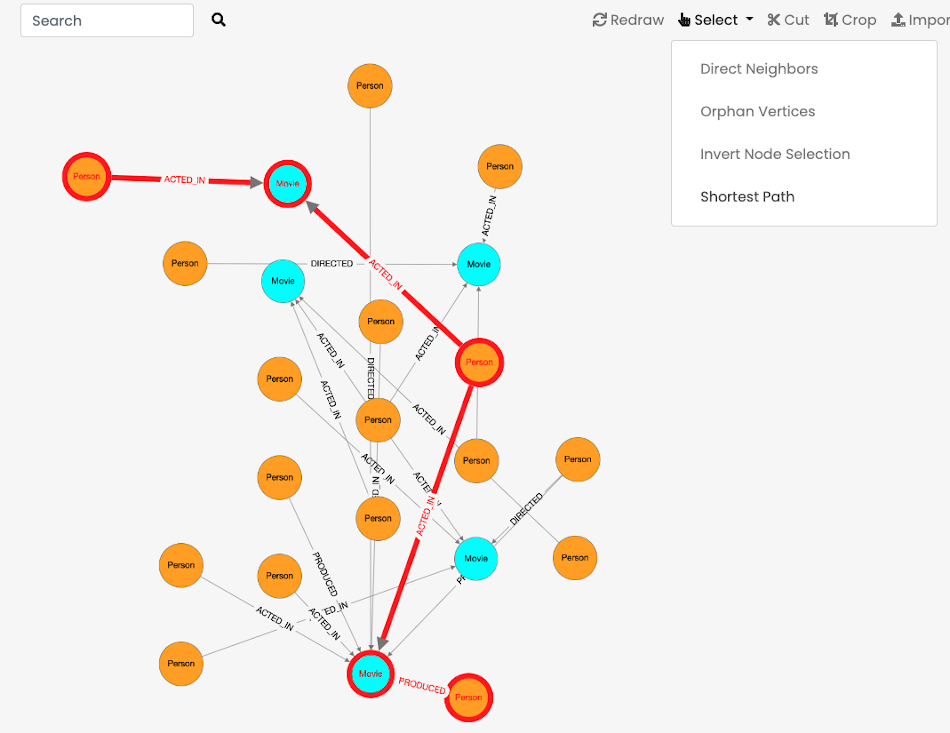
Displays the shortest path between 2 nodes. The Dijkstra algorithm is used (with fixed weight 1 per node). If the two nodes are connected, the entire path will be selected.
Usage
Select 2 nodes from the graph and click on Select → Shortest Path.
See Graph Algorithms Appendix for algorithm details, advanced usage, and the full library of graph algorithms available via Cypher and SQL.