Compatible Tools
gdotv
ArcadeDB is fully compatible with gdotv, so no particular configurations need to be made. The only requirement is loading the Gremlin plugin via the server setting:
"-Darcadedb.server.plugins=GremlinServer:com.arcadedb.server.gremlin.GremlinServerPlugin"Details
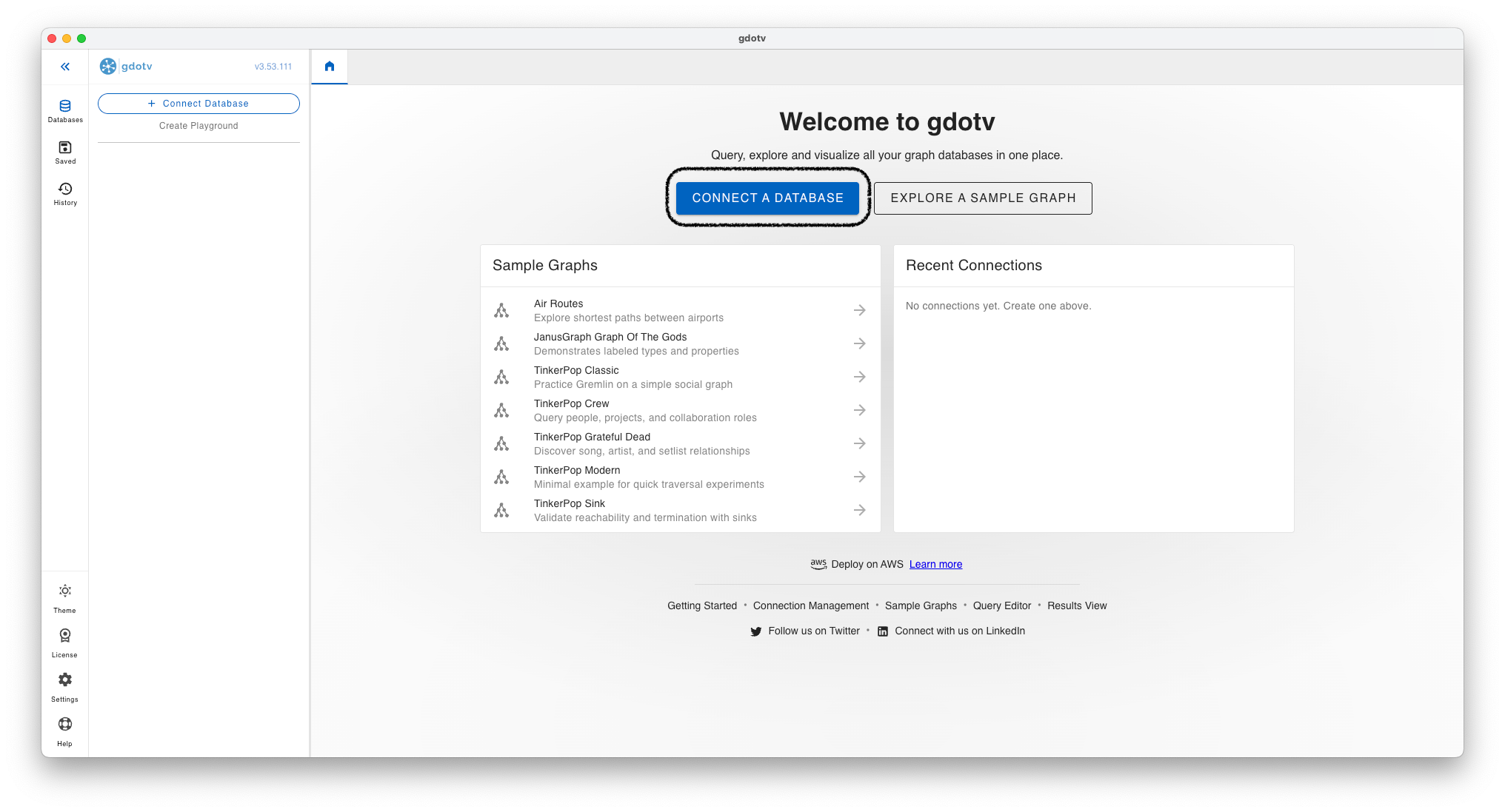
On the title screen, create a new connection:
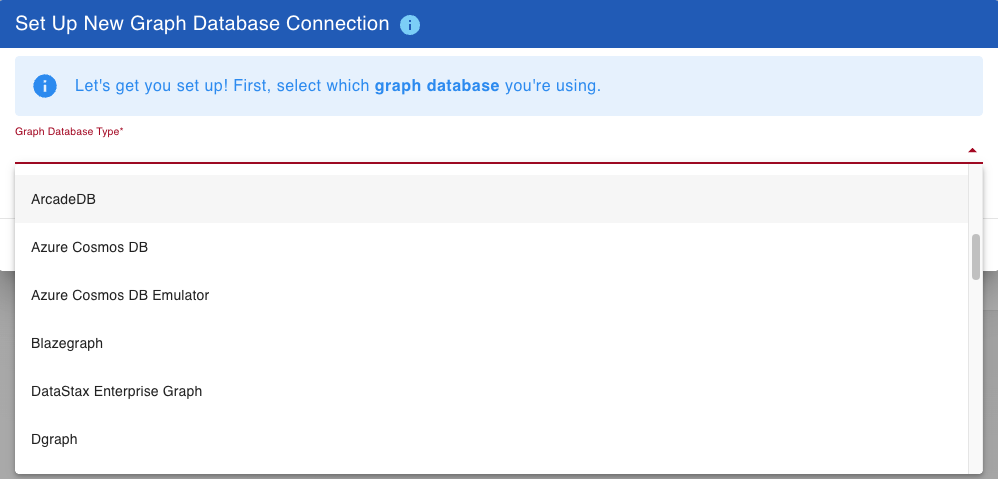
choose ArcadeDB from the list of graph database types:
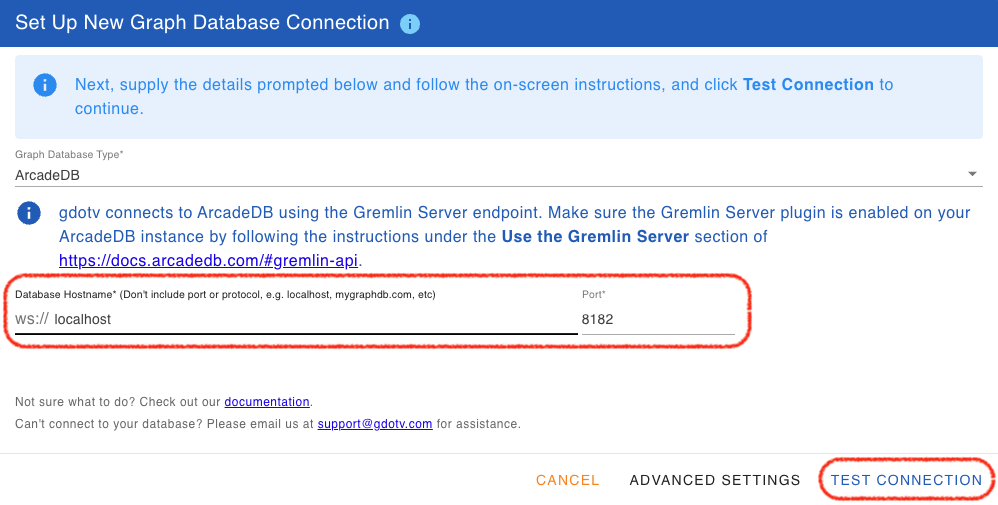
enter the host name of the ArcadeDB server:
and enter username and password:
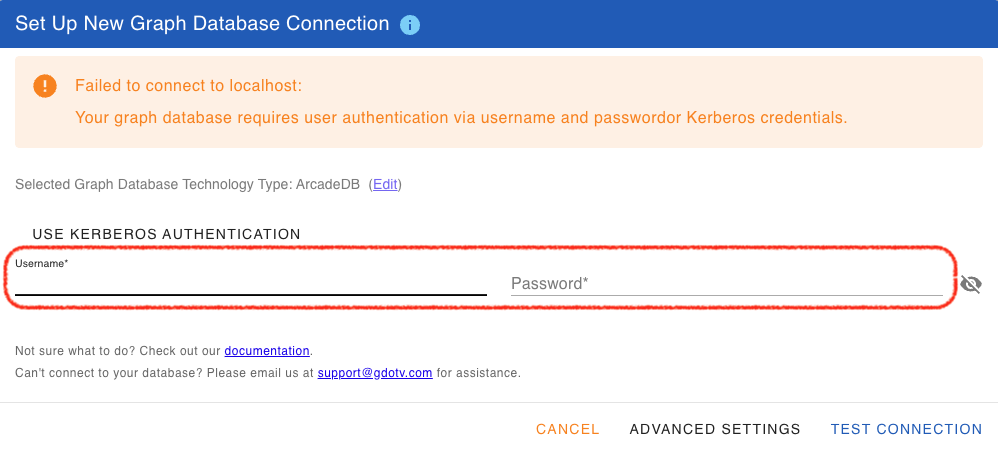
In case of non-standard configurations of the server, under "Advanced Settings" more fine-grained settings can be made.
JetBrains DataGrip/Database Plugin
Connecting via JetBrains DataGrip database plugin is relatively straightforward. The introspection features aren’t working yet, but the basics seem to work well.
Details
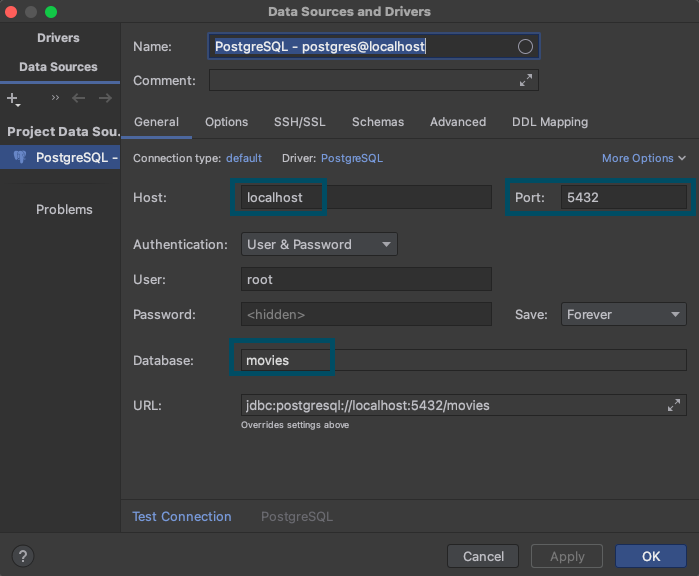
To connect, create a new Postgres datasource and point it to the IP/port of your ArcadeDB server. (0.0.0.0:5432 by default) You will need to fill out the database field, or you’ll get an error on connection. At present, changing the current database requires editing the datasource.
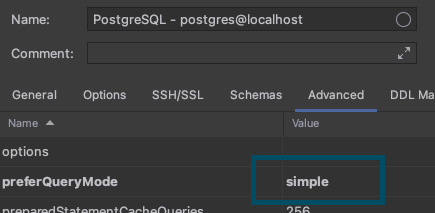
Next, you’ll need to set preferQueryMode to simple on the Advanced tab, like this:
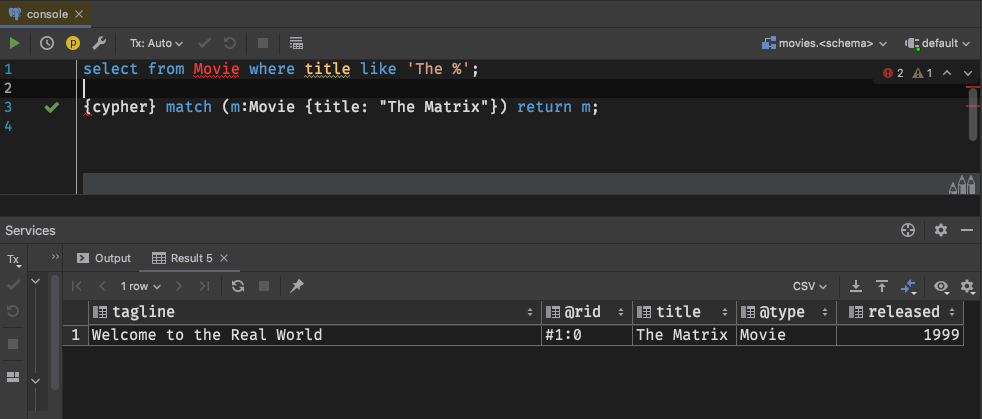
You can then run queries via a console. Even non-SQL queries will work, though expect squigglies!
DBeaver
The universal database tool DBeaver has basic compatibility via the legacy Postgres connector.
Details
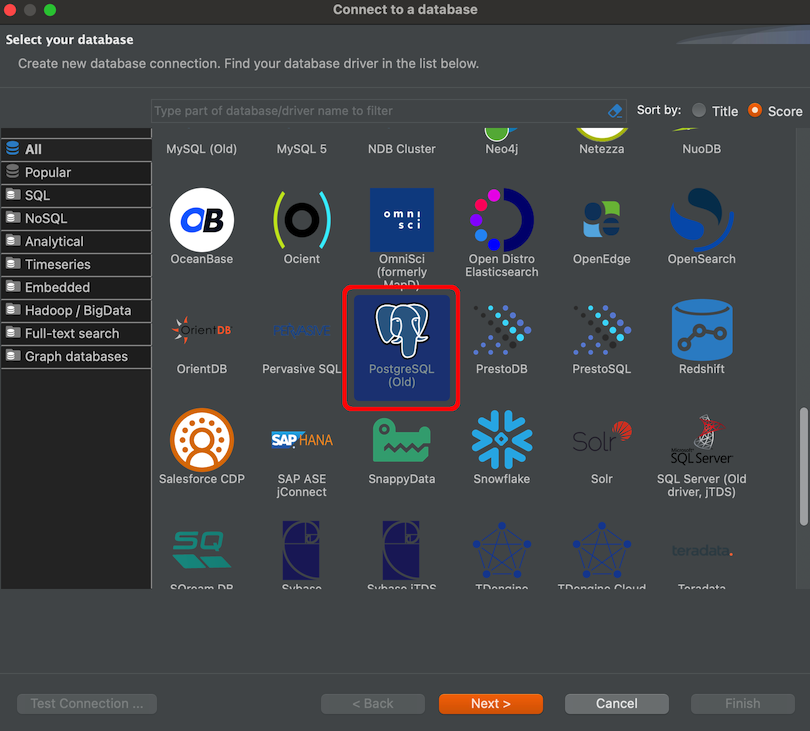
Create a new connection with the "PostgreSQL (Old)" driver:
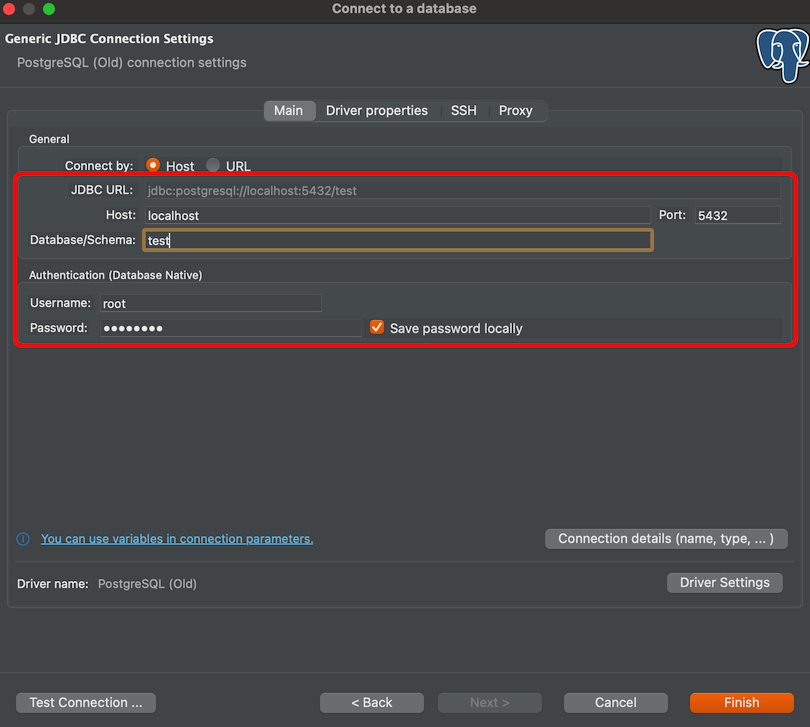
Add your host, port, database, username and password to the general connection settings:
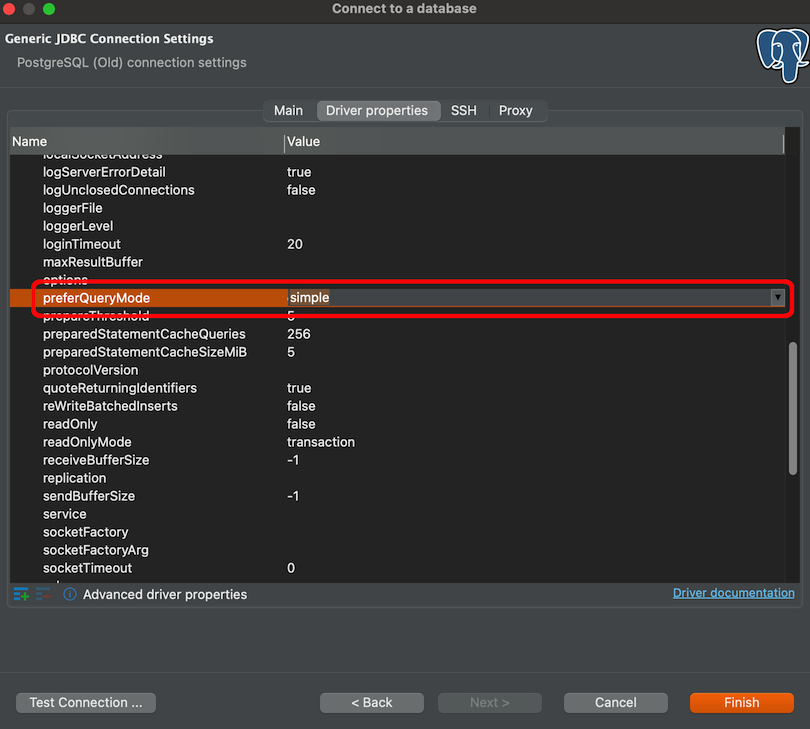
Set the preferQueryMode option to simple on "Driver Properties" tab:
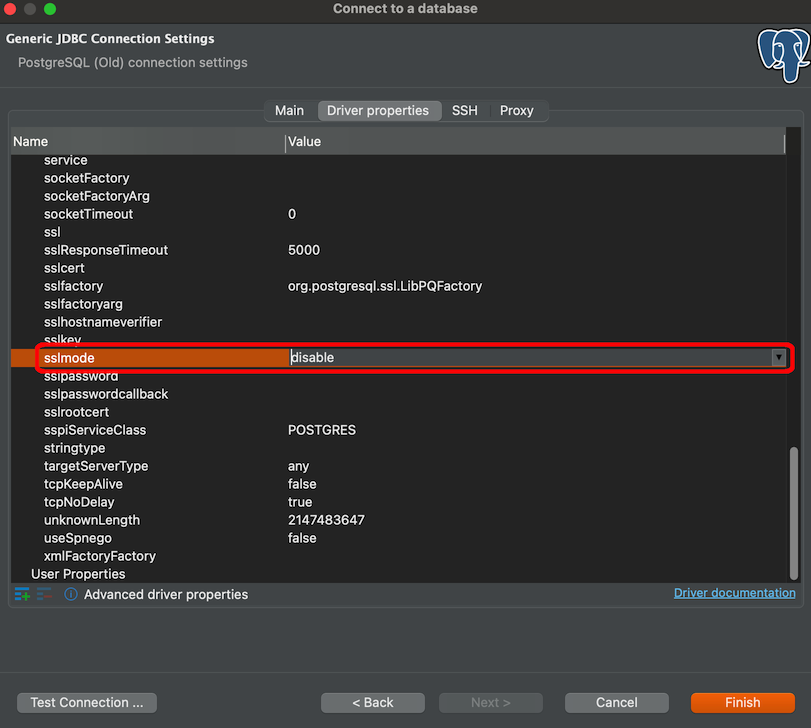
Set the sslmode option to disable:
The "Finish" the connection wizard and double click the created connection to connect. Then with a right-click the SQL console can be started:
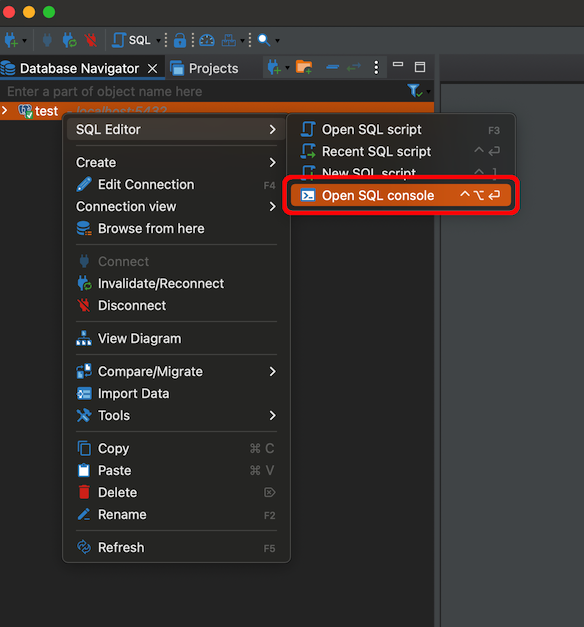
Now the SQL console can be used to communicate via DBeaver with ArcadeDB.
Note that this is only a basic support using a generic relational driver for a NoSQL database, so various functionalities can result in errors.
DbVisualizer
The database client DbVisualizer can also be used via its PostgreSQL driver.
Details
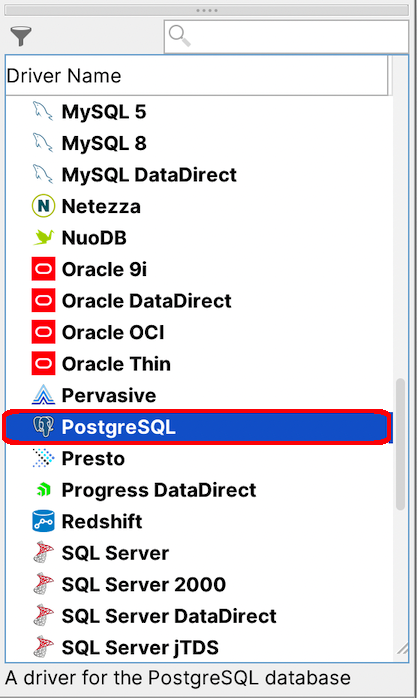
Create a new connection and select "PostgreSQL":
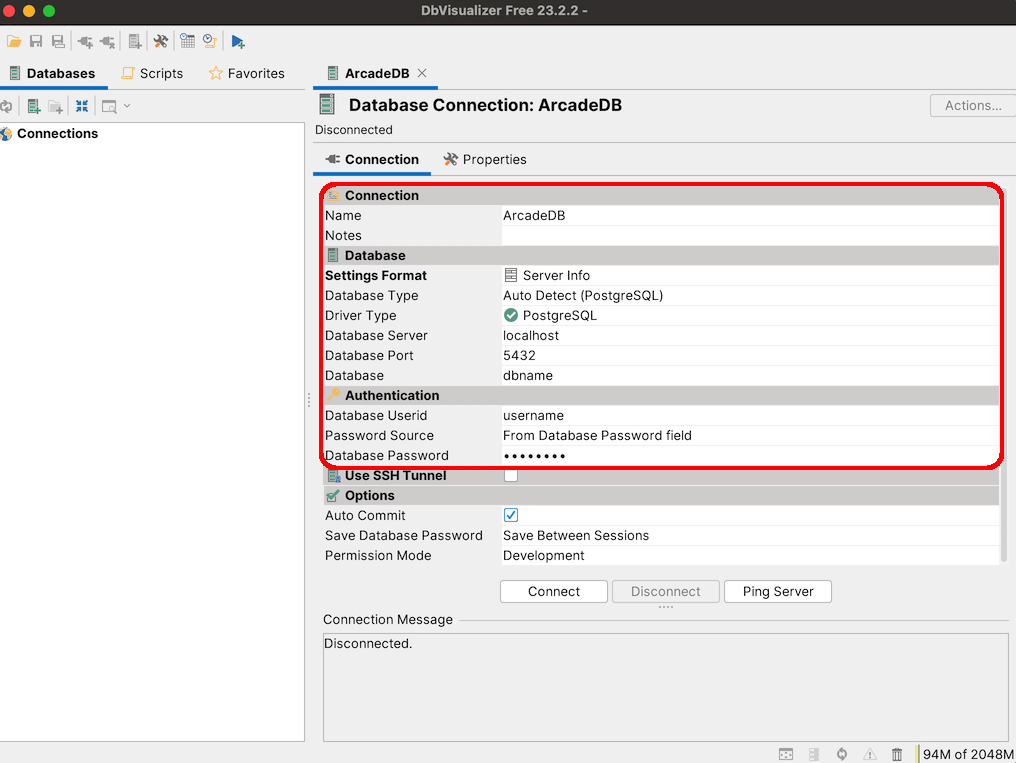
Enter server, port, database, userid, and password:
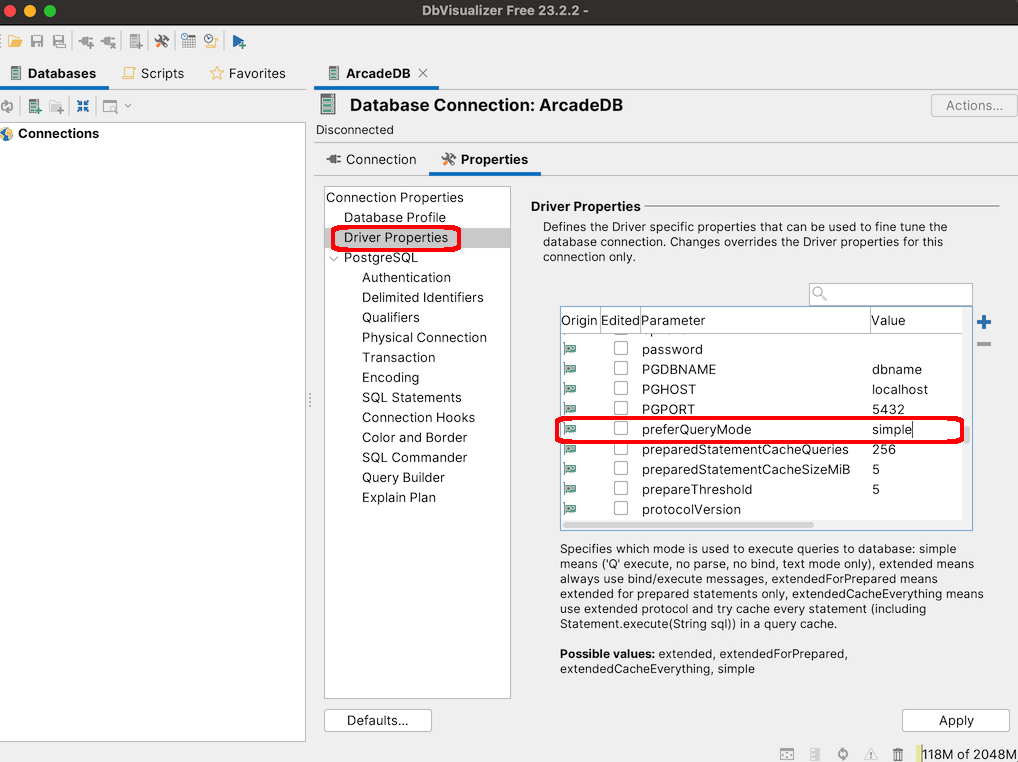
Go to the "Properties" tab and set preferQueryMode to simple:
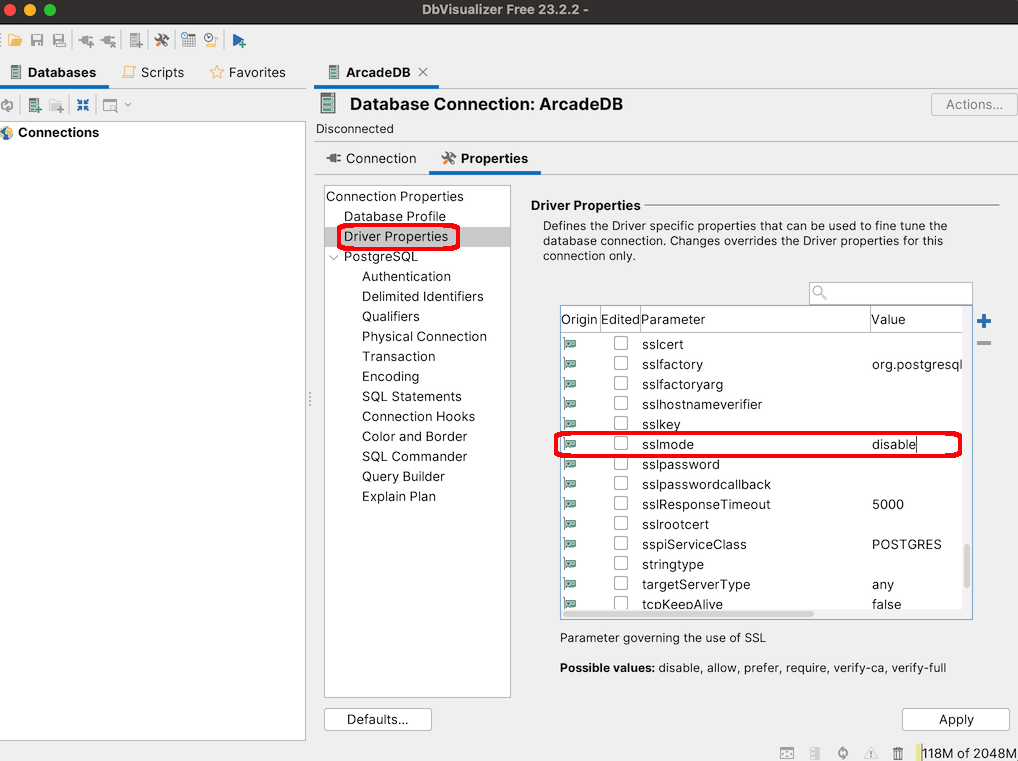
Also set sslmode to disable:
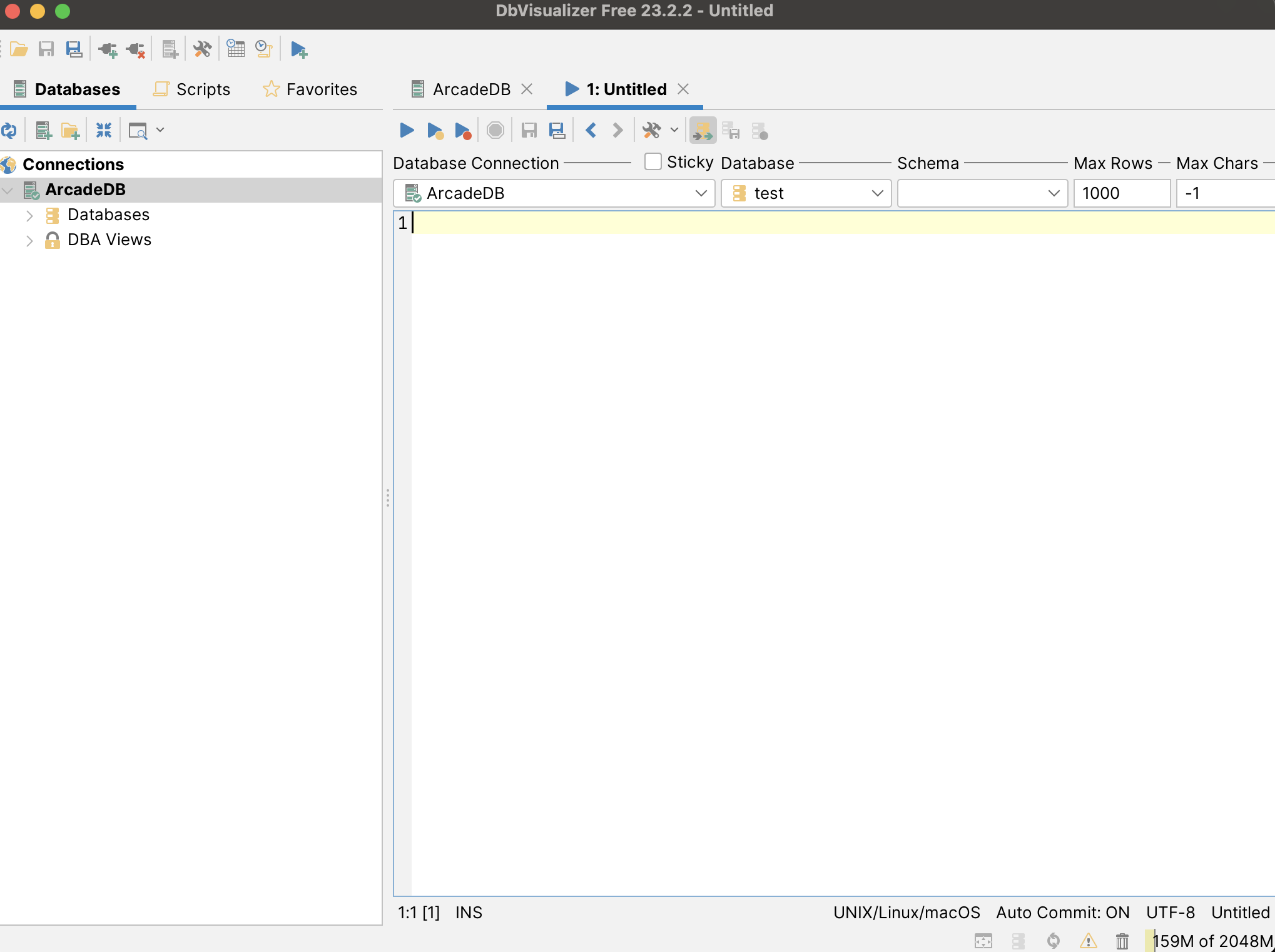
After applying the changes and connecting the SQL commander is available:
DbGate
The SQL+noSQL database client DbGate is compatible via the PostgreSQL driver.
Details
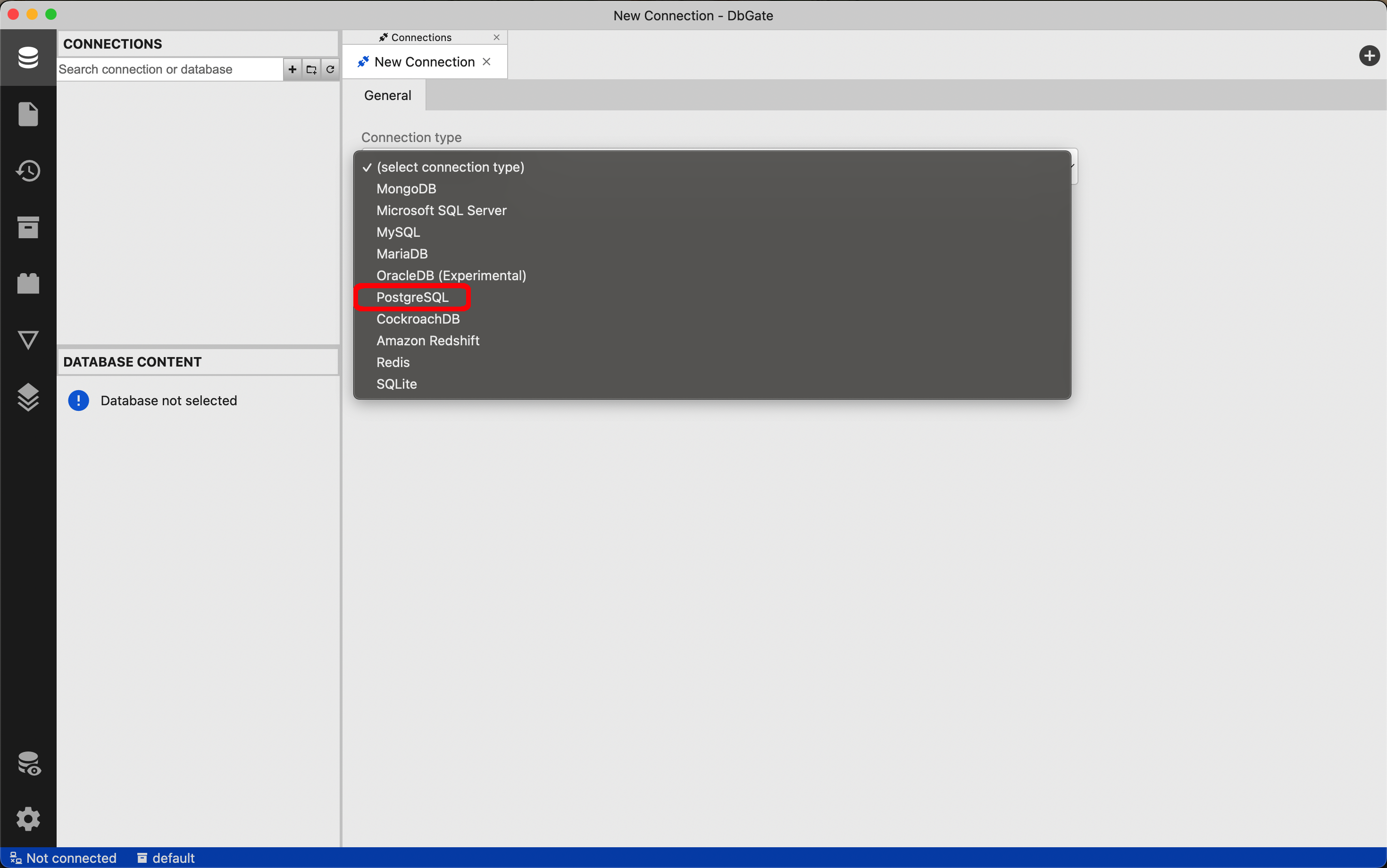
Add a new connection of type PostgreSQL:
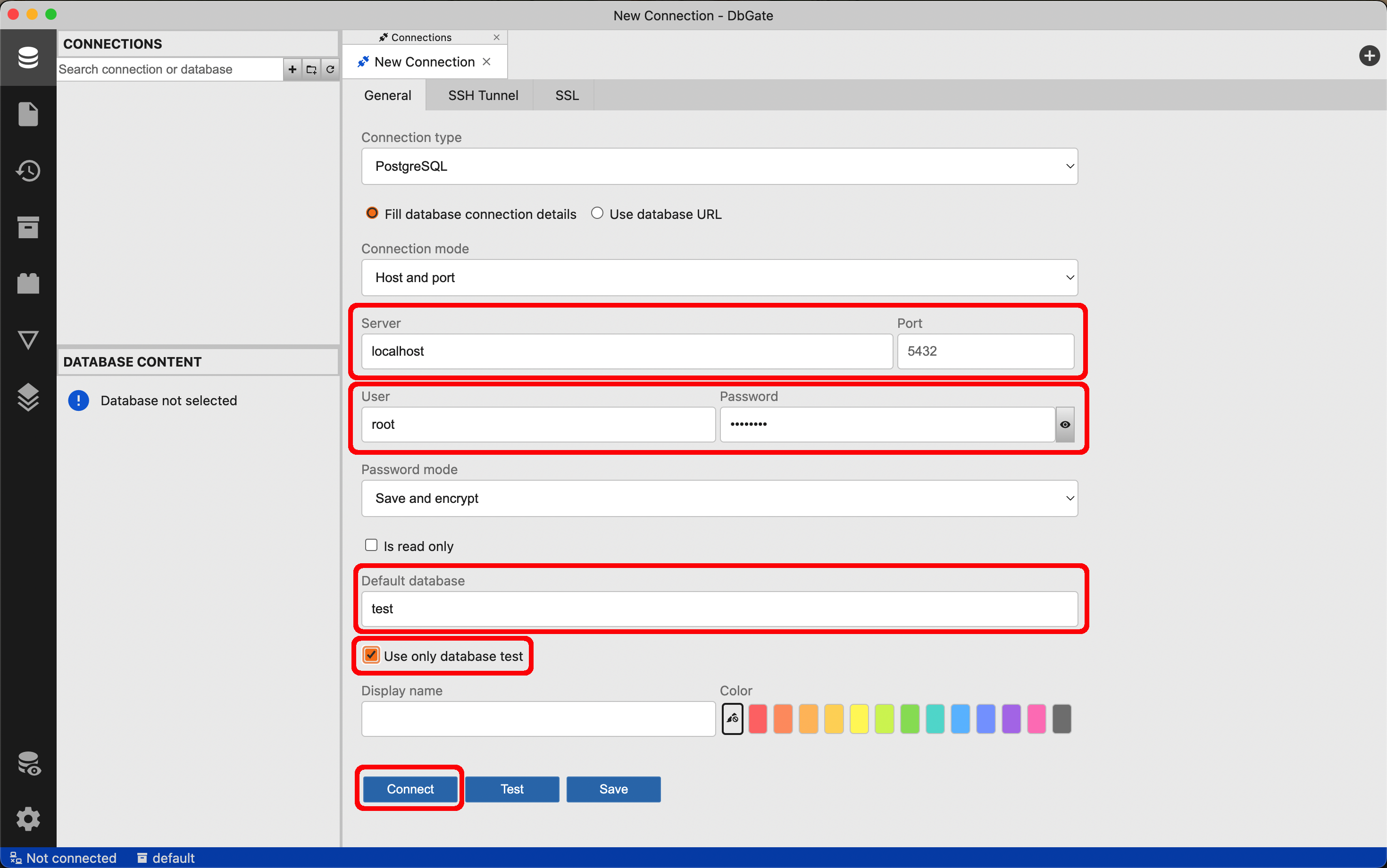
Enter host, port, user, password, database, make sure to check "Use only database <db>", and connect:
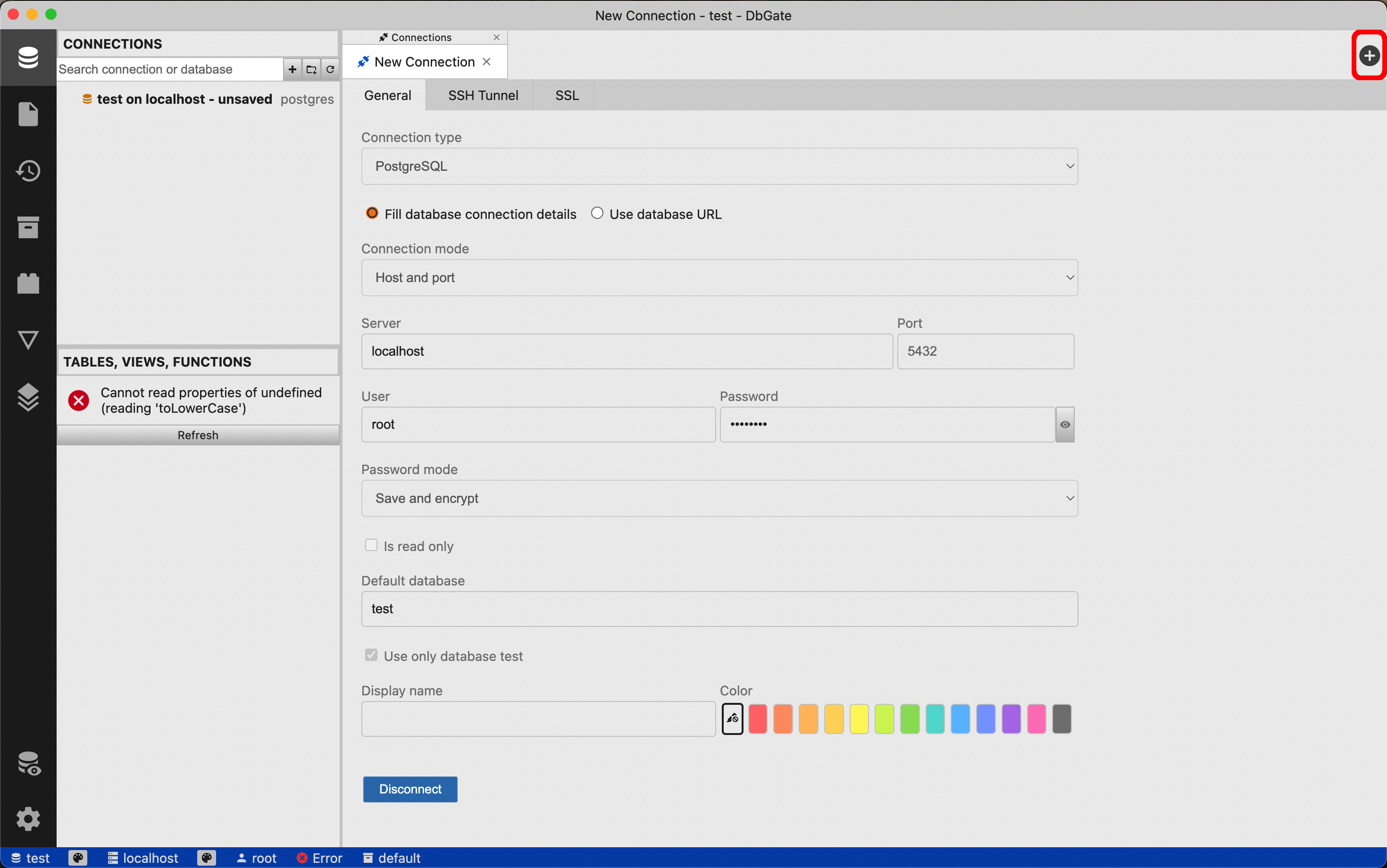
It seems the reported error can be ignored, so now new queries can be composed by:
LibreOffice Base
There is minimal support for ArcadeDB in LibreOffice Base via a PostgreSQL connection:
Details
Select "Connect to existing database" and choose "PostgreSQL"
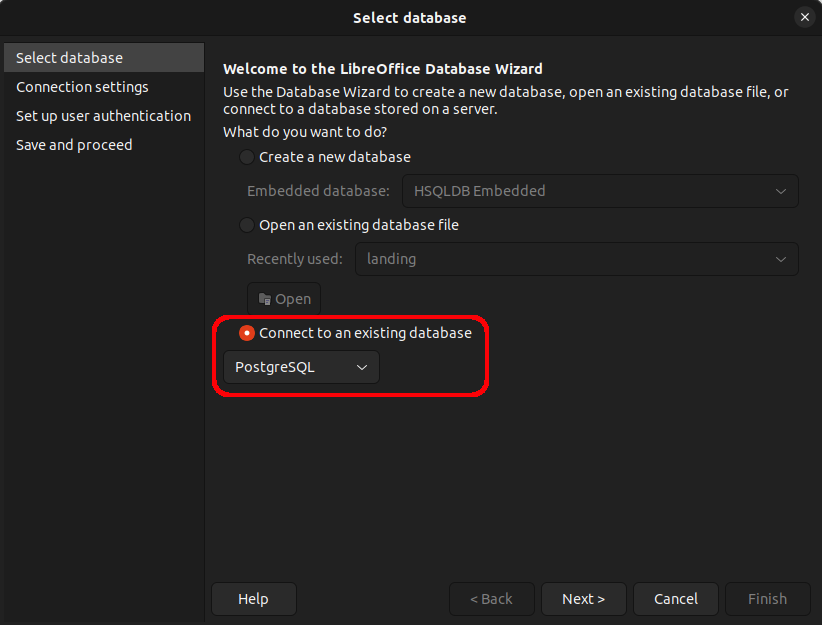
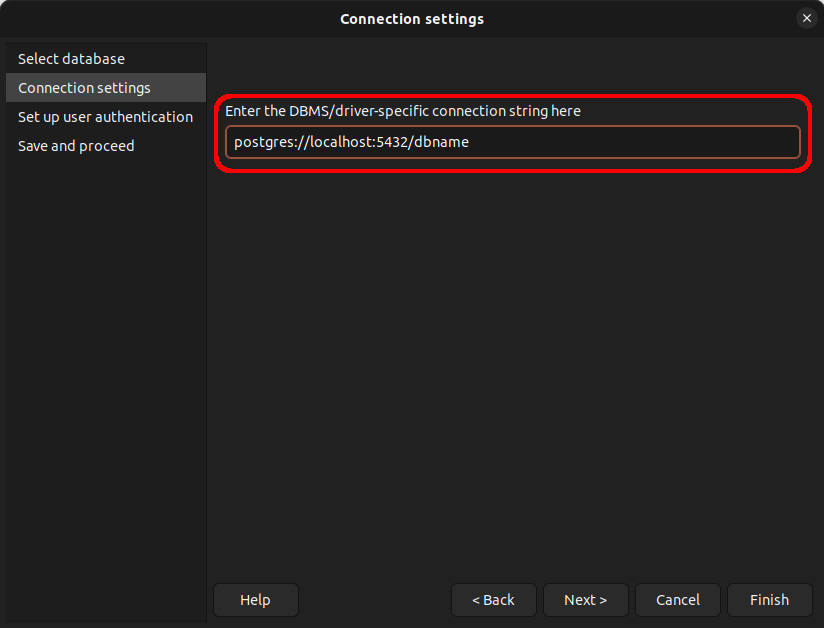
Enter the postgres protocol connection string (without username and password), for example:
postgres://localhost:5432/dbname
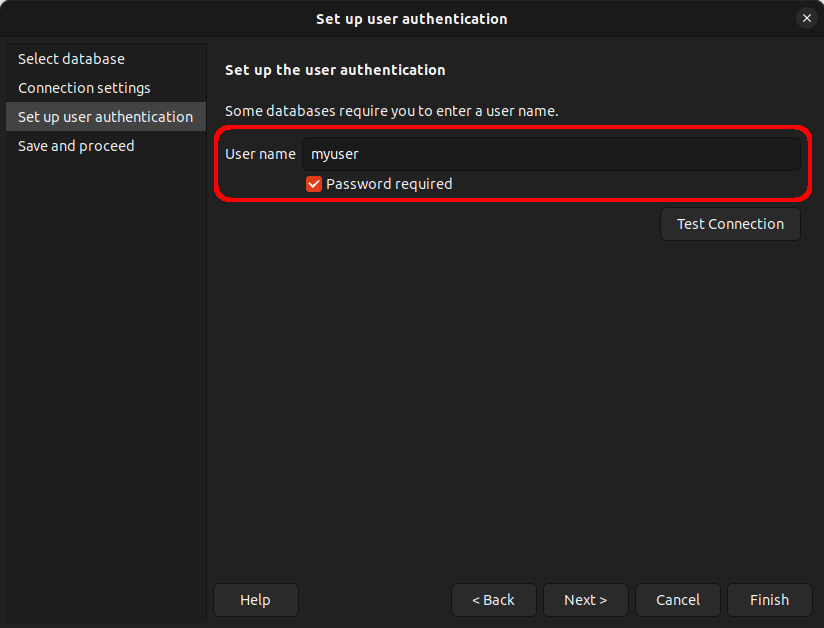
Enter the user name and check that a password is required (try with the "Test Connection" button)
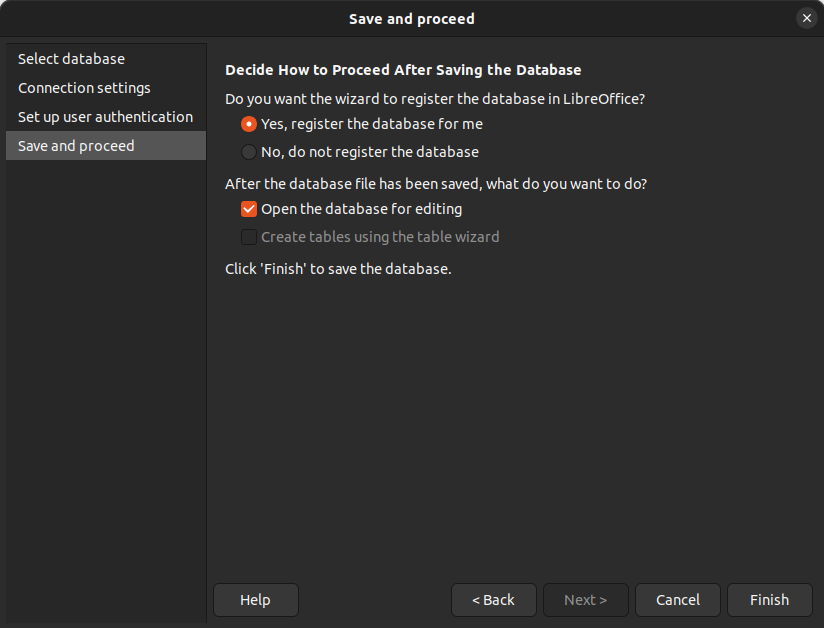
Choose if you want to register the database in LibreOffice, select to open for editing, and "Finish" the wizard.
Now, in the menu under "Tools" → "SQL…" queries and commands can be send to ArcadeDB.
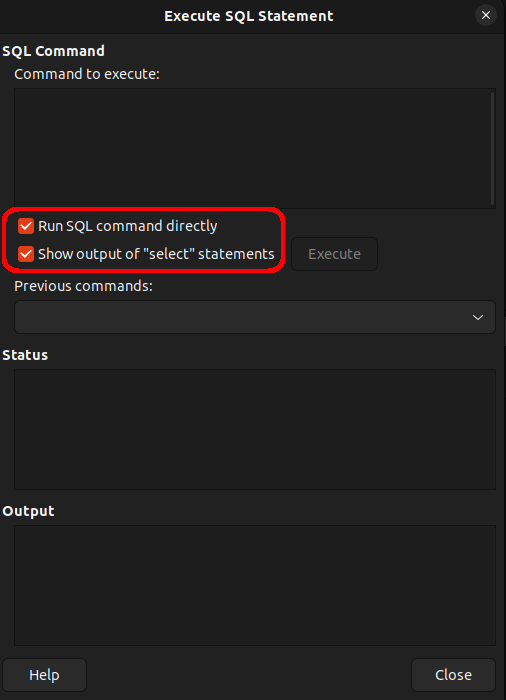
Make sure that "Run SQL command directly" is selected, and to view results check "Show output …"