Studio
ArcadeDB Studio is the web-based workbench that ships with every ArcadeDB server. You can open it by pointing a browser at the server and port that host the ArcadeDB server (in "development" or "test" mode); for a default local install this is http://localhost:2480 .
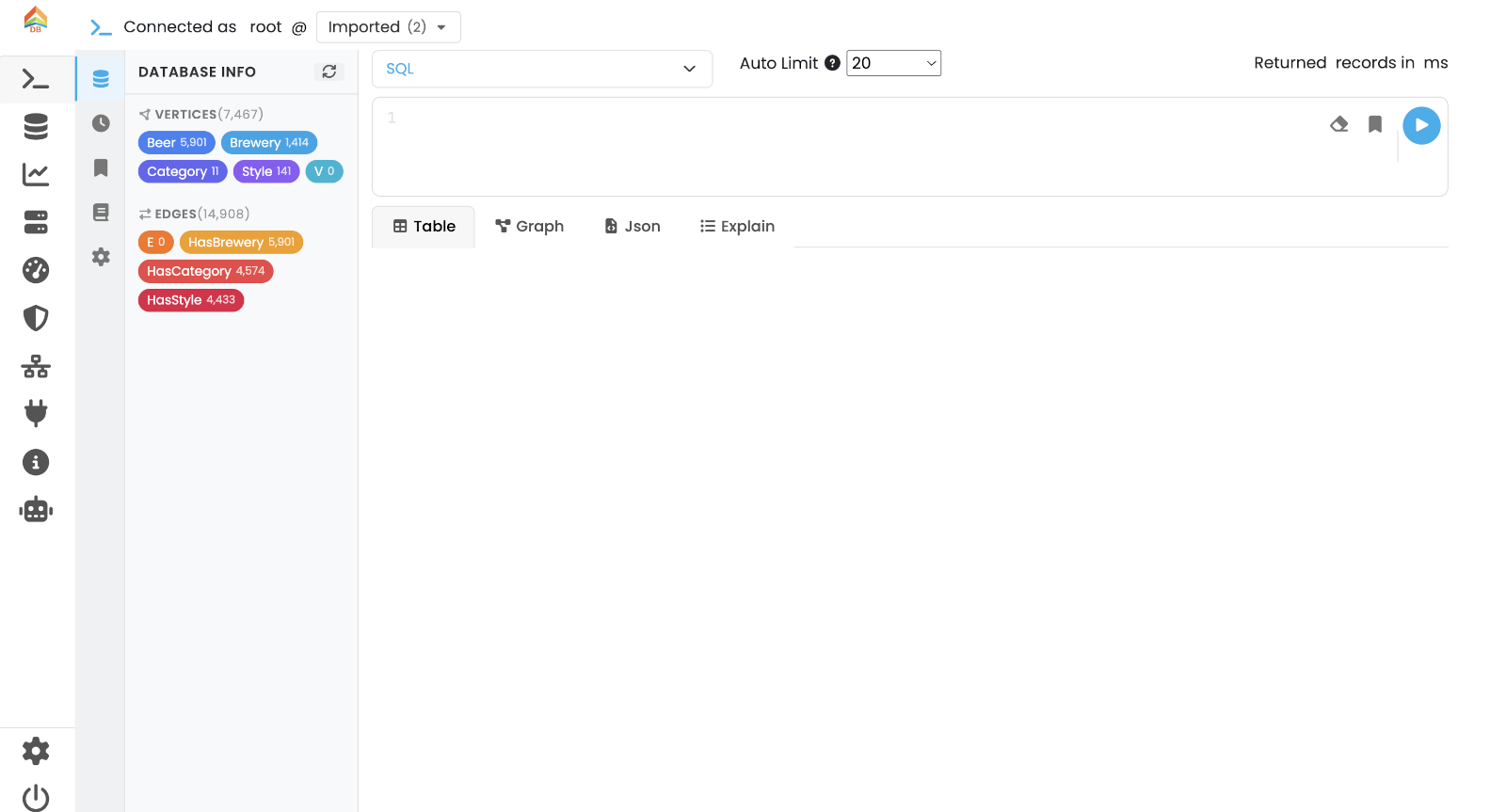
Main menu
The vertical icon bar on the left is the main navigation. Each icon opens one tab in the main canvas:
| Icon | Tab | Needs a selected database |
|---|---|---|
🔎 |
Query — write and execute commands in SQL, SQL Script, Open Cypher, Apache TinkerPop Gremlin, GraphQL, MongoDB, Redis or PromQL, or search a vector, hybrid or full-text index; visualise results as Table, Graph, Chart, JSON or Explain |
Yes |
🗄 |
Database — manage schema, buckets, indexes, dictionary, time series (Time Series sub-tab), metrics, settings and per-database backups |
Yes |
🖥 |
Server — server health summary, metrics, sessions, events, server-wide settings, auto-backup and MCP configuration |
No |
⏱ |
Profiler — record and analyse query execution across protocols, save runs, optionally analyse with AI |
No |
🛡 |
Security — manage users, user groups (roles) and API tokens |
No |
🌐 |
Cluster — replication topology, leader election, peer add/remove |
No |
🔌 |
API — browse and try the HTTP API endpoints from an interactive playground |
No |
ℹ |
Info — quick links into this documentation |
No |
🤖 |
AI Assistant — natural-language assistant for schema, queries and data modelling (paid add-on) |
Yes |
⚙ |
Settings — Studio appearance (light/dark/system theme) |
No |
The current user and database selector are shown at the top of every tab that operates on a database. Tabs that do not need a database (Server, Profiler, Security, Cluster, API, Info, AI, Settings) are enabled as soon as you sign in.