Database Panel
The Database panel manages everything that lives inside one database: schema, storage layout, indexes, dictionary, time series, metrics, settings and per-database backups.
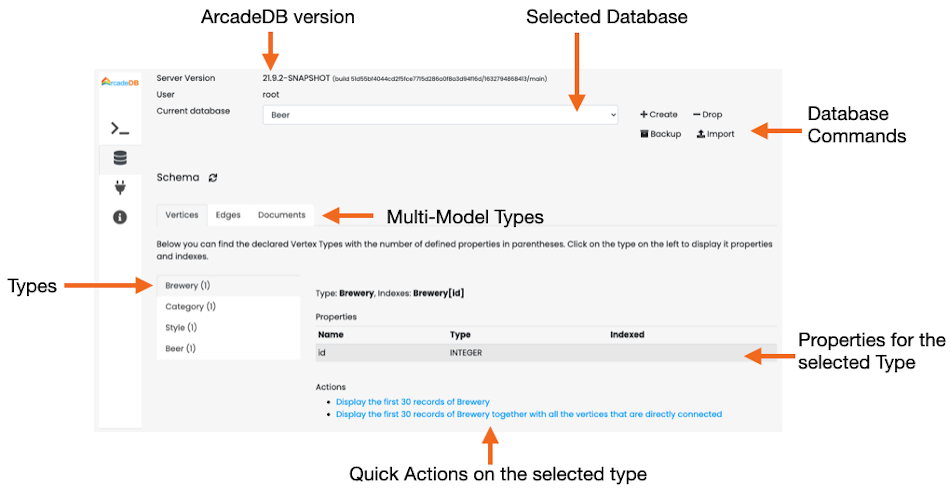
The header shows the current user, the database selector, and the database-level actions:
-
Create Database — create a new database from a name.
-
Import Dataset — open a modal to import a dataset (e.g. importer formats, JSON, OrientDB or Neo4j export).
-
Drop Database — irreversible removal of the current database.
-
Reset Database — drop all data and schema while keeping the database file.
-
Backup Database — trigger an immediate backup of the current database. The resulting file is written under
backups/<db-name>/<db-name>-backup-<timestamp>.zip. See Backup.
The panel is split into seven sub-tabs.
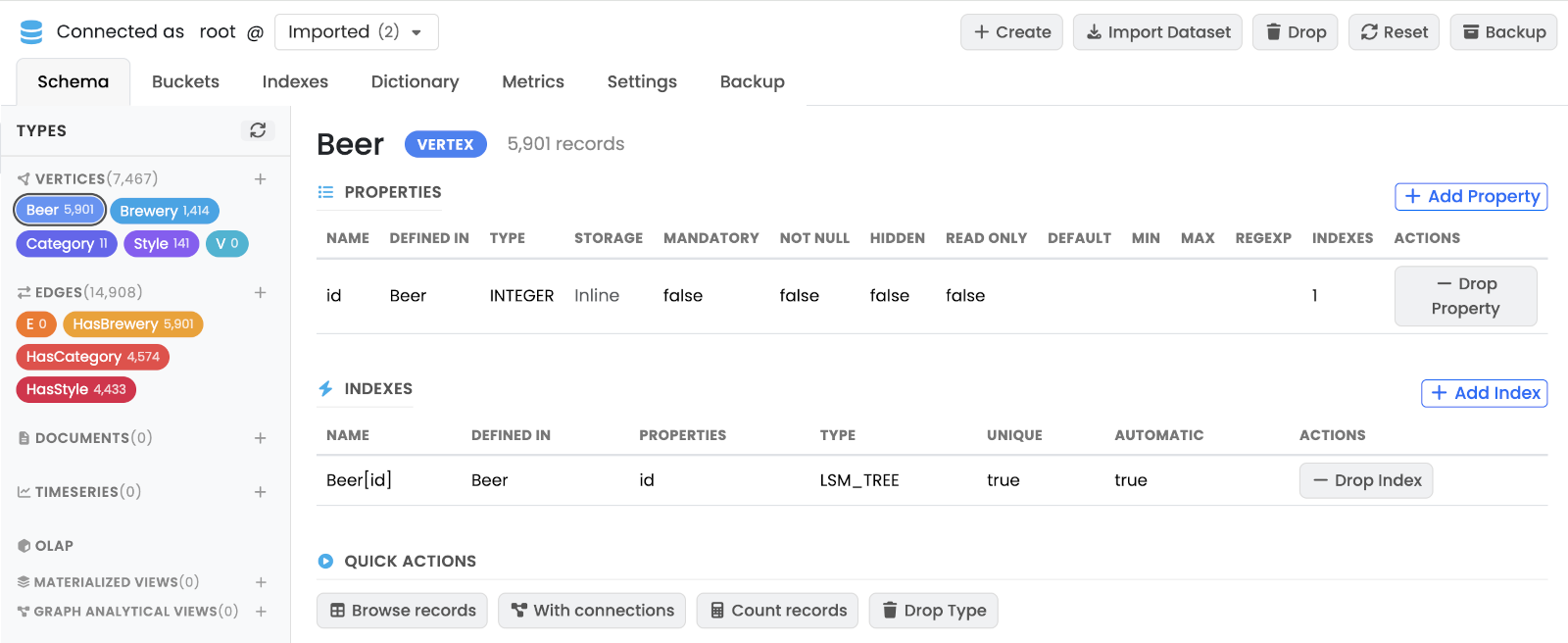
Schema
Lists every type in the database (document types, vertex types and edge types) in a scrollable left sidebar. Selecting a type loads its detail on the right: declared properties (name, type, constraints), indexes built on the type, parent / child types, and quick-action buttons.
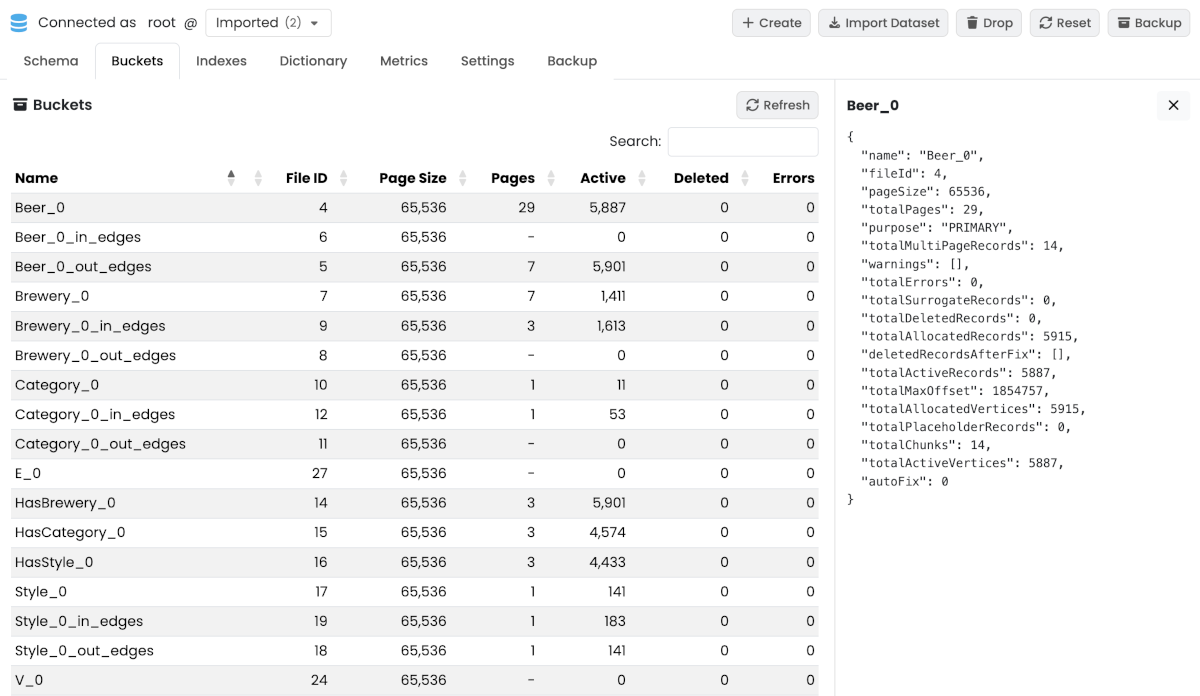
Buckets
Lists the storage buckets that back the database. Selecting a row opens a detail panel on the right with file path, record count, page count and per-bucket counters.
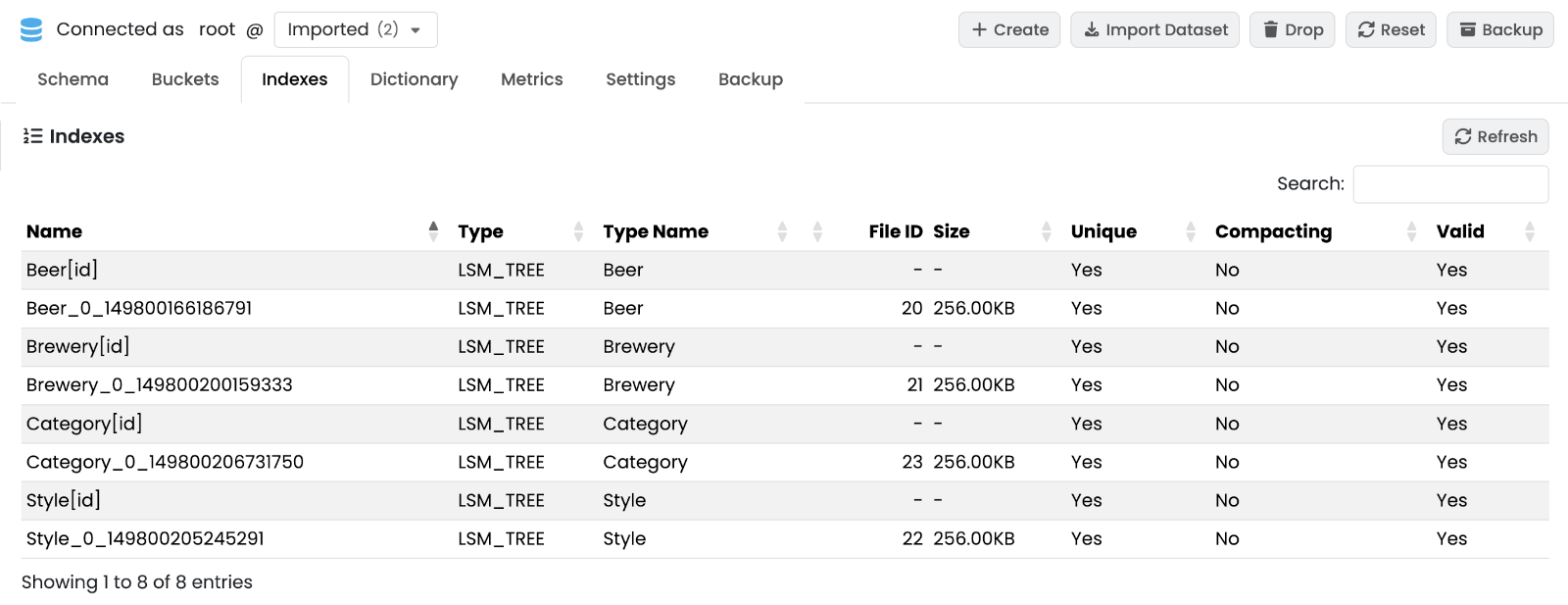
Indexes
Lists every index defined on the database with type, properties, status and entry count. Selecting a row opens a detail panel with the index definition and statistics.
Dictionary
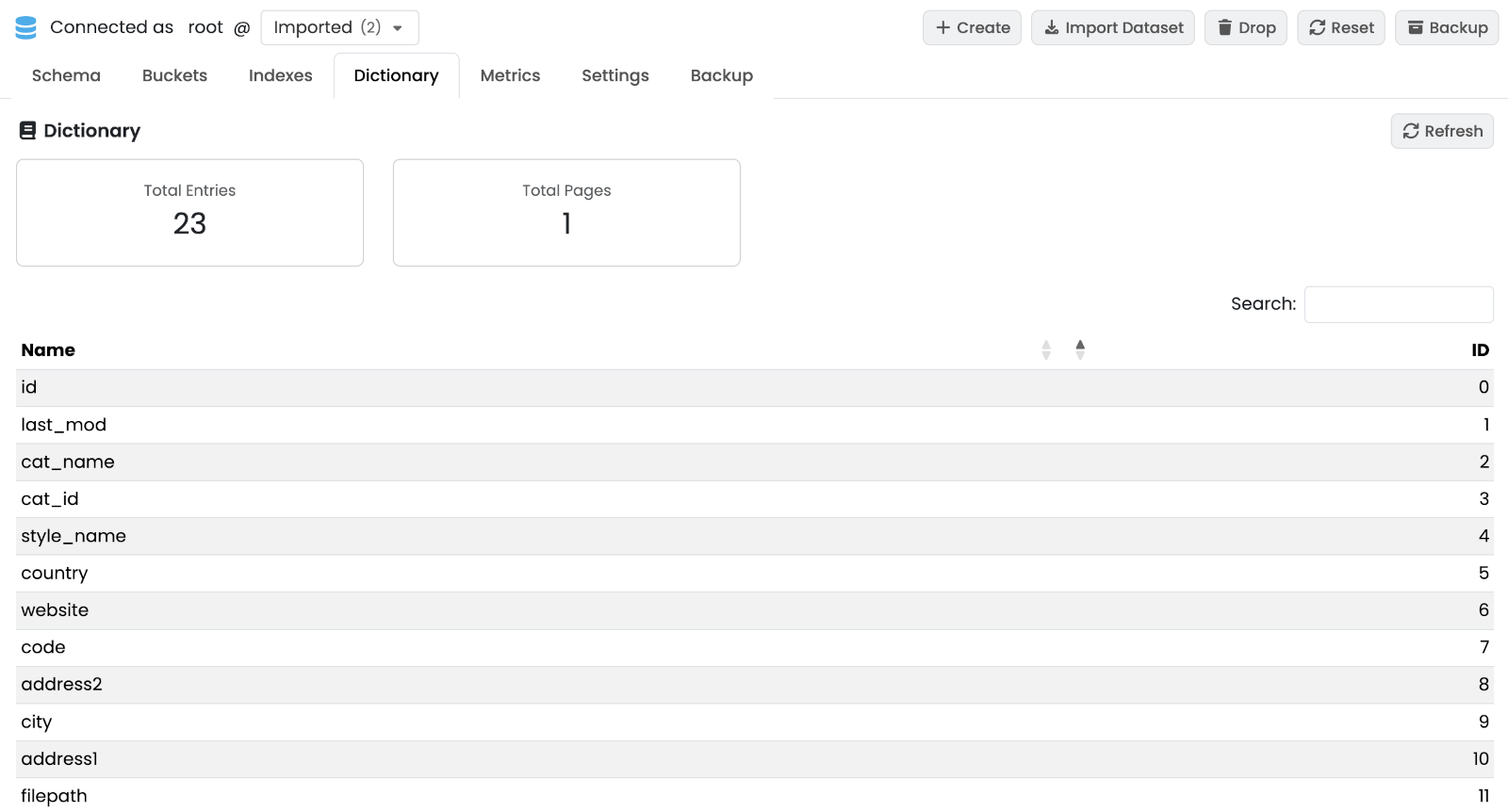
The dictionary deduplicates property names and string values across the database. The sub-tab shows summary cards (total entries, total pages) and a paginated table of the dictionary entries.
Time Series
The Time Series sub-tab holds everything about the database’s time-series types: create and drop a type, query it with the builder or PromQL, and find ingestion snippets. It is described in Time Series sub-tab. Time series types also appear in the Schema sidebar, and any time-series result can be charted from the Query panel (see Chart).
Metrics
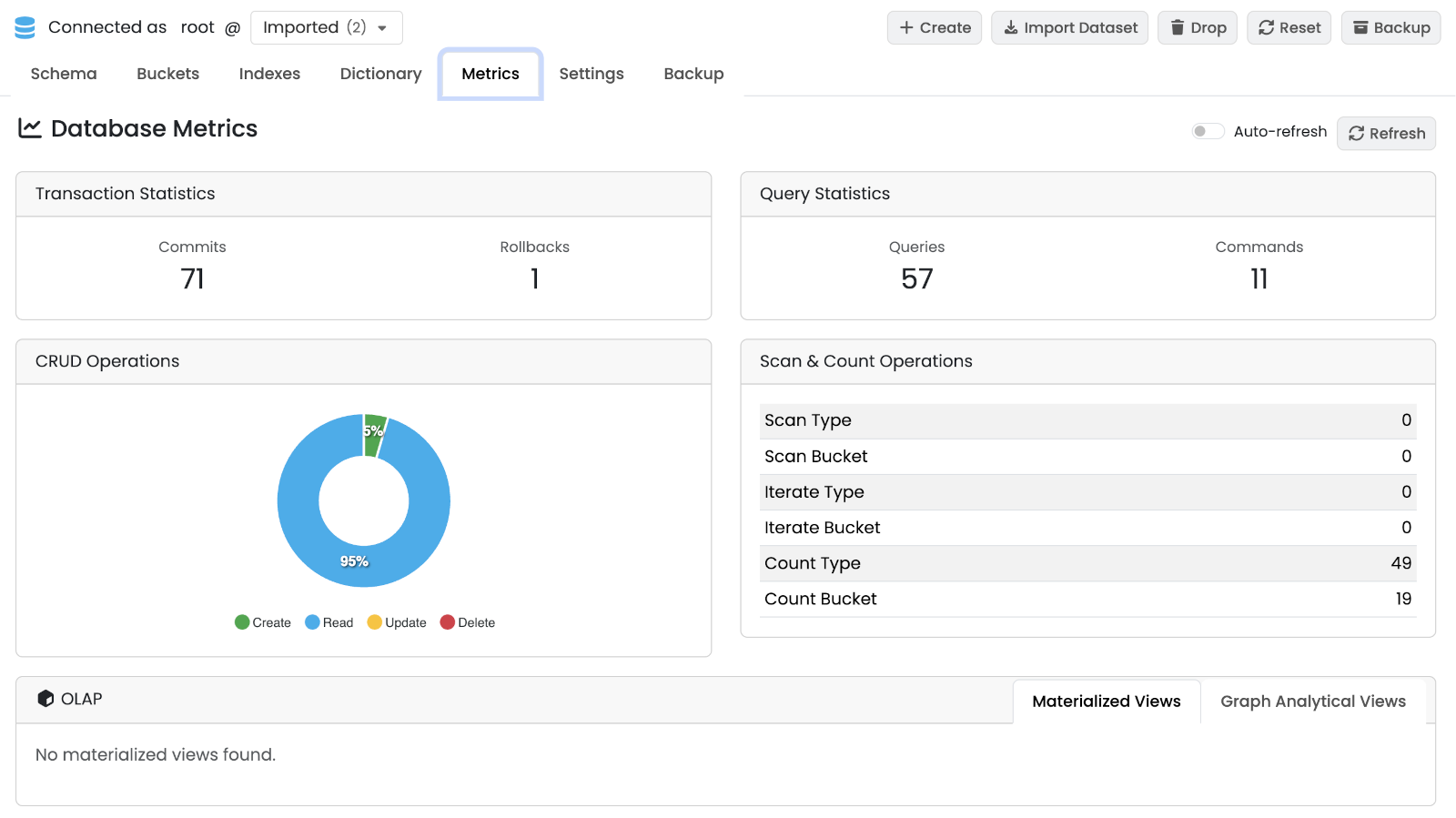
Live counters and charts for the selected database. Auto Refresh keeps the values updated at a fixed interval.
-
Transaction Statistics — commits and rollbacks since startup.
-
Query Statistics — queries and commands executed.
-
CRUD Chart — running chart of creates, reads, updates and deletes.
-
Scan & Count — full-scan and count operations per type.
-
OLAP — nested tabs for Materialized Views and Graph Analytical Views: refresh status, last computation, row counts.
Database Settings
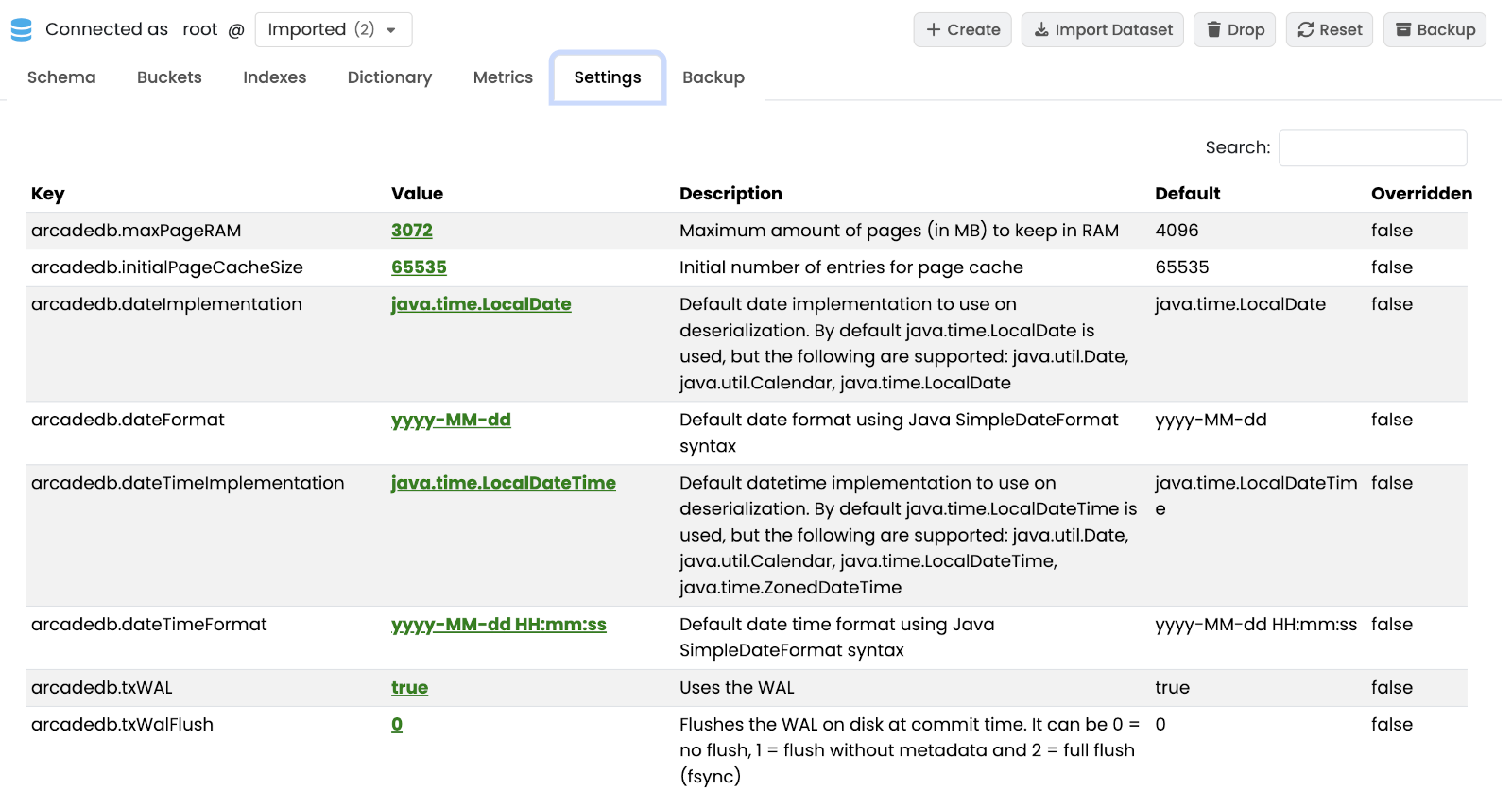
Key-value table of the database-scoped configuration settings. Values are editable by users with database-settings permission; others see a read-only view. See Settings for the full setting reference.
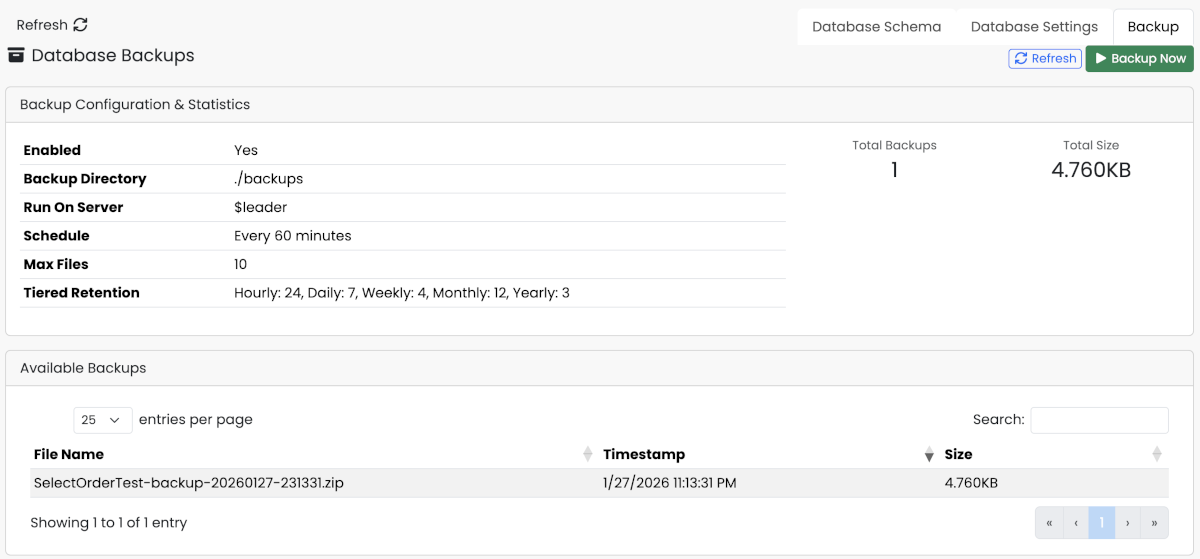
Backup
Per-database backup management.
The sub-tab displays:
-
Backup Configuration — current schedule and retention settings for this database (read-only here; configured server-wide in the Server › Backup panel).
-
Statistics — total number of backups and disk space used.
-
Available Backups — paginated list of backup files with timestamps and sizes.
From this sub-tab you can:
-
Click Refresh to reload the list.
-
Click Backup Now to trigger an immediate backup of the current database.
-
Restore or delete an individual backup from the row actions.